From Cv To Autofill
From CV to autofill (full flow)
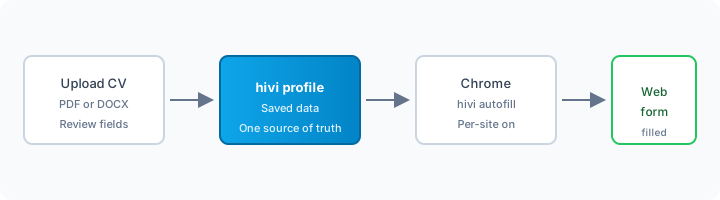
This guide walks through the path you confirmed: upload a CV → build your hivi profile → install the Chrome extension → enable autofill on a site → complete a web form.
1. Sign in at hivi.ca
Open https://hivi.ca/ and sign in with the account you use for hivi.
2. Open Import Your Profile
Go to Import Your Profile in the app (path in the browser: /import-profile). You will see three ways to add data:
- LinkedIn (often used together with the extension; see LinkedIn and your career).
- Upload CV (PDF or DOCX).
- Manual entry.
Choose Upload CV.
3. Upload and review your CV
- Select your resume file. hivi extracts text and maps it to profile fields.
- Review each mapped field. Correct anything that was misread (dates, titles, formatting).
- Save so your profile becomes the single source of truth for suggestions later.
For any important field the import skipped, add it manually in your profile after import.
4. Install hivi autofill from the Chrome Web Store
- Open the listing: hivi autofill on the Chrome Web Store.
- Click Add to Chrome and confirm.
You must use Google Chrome (or another Chromium browser that supports Chrome extensions the same way).
5. Sign in inside the extension
- Click the hivi autofill icon in the toolbar.
- Sign in with the same credentials you use on hivi.ca. If your account uses two-factor authentication, complete that step when prompted.
6. Turn on autofill for the site you care about
Autofill is off by default for every website.
- Visit the site where you need to fill a form (for example an employer’s application page).
- Open the extension popup.
- Enable Autofill for this site (this origin only).

7. Fill the form
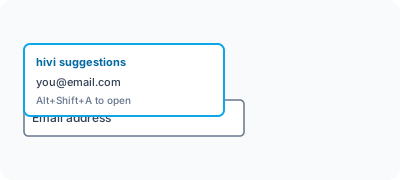
- Click into a text field. If hivi has a match, a suggestions list can appear; pick the right value.
- Use the shortcut Alt+Shift+A (Windows/Linux) to open suggestions for the focused field when autofill is enabled.
- From the popup, you can use Fill all on this page where it makes sense (many plain text-like fields at once).
Always read the form and confirm values before you submit.
8. When suggestions need a quick reset
- Confirm autofill is on for that exact site (including
wwwvs non-wwwif the site redirects). - Confirm you are signed into the extension.
- Some forms use custom controls or heavy scripting; complete those fields manually when the page needs it.